Pokémon Card Collection Tracker: Keep Your Binder in Order
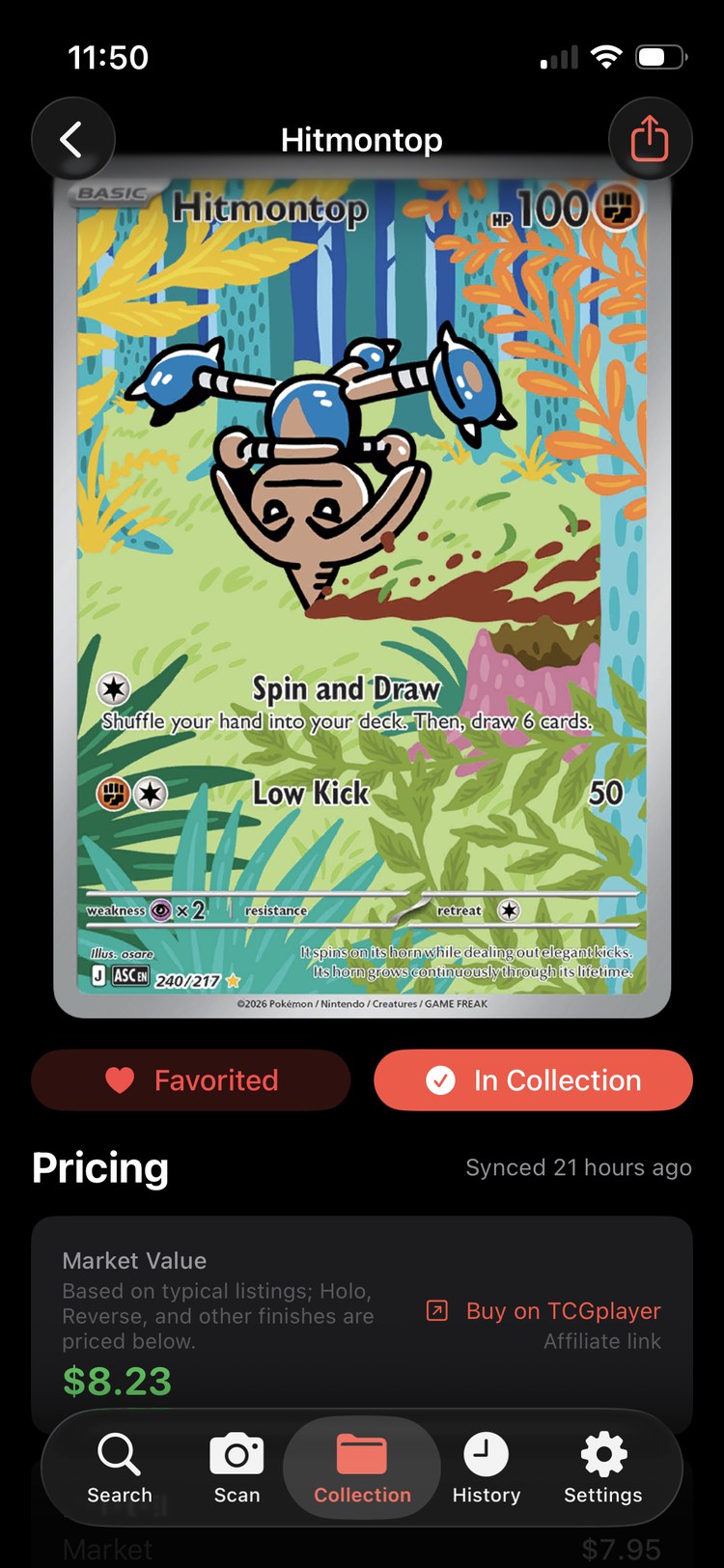
Start with a small, checked batch. Record each card's set, collector number, printing, condition, and quantity. Keep the price source and update date with its value. MonZap lets you save scanned or searched cards to named collections, review available price references, and export a CSV record.
Build your first collection
- Name it for a real group. “Trade Binder” or “Binder 1” makes the digital record easier to connect to the cards on your shelf.
- Scan or search a small batch. Match the name, set, and collector number before adding each card. Check finish, language, and stamps on the physical card.
- Review the saved details. Set the quantity and add condition, variant, or notes. Use notes for a binder page or box location when useful.
- Count and reopen. Compare the saved card count with your batch. Open a few records to check that you saved the printing you intended.
Repeat once the sample is right. The scanner checklist gives you six checks to run before a larger binder scan.
What your inventory needs
- Exact card
- Name, set, and collector number. Similar artwork can belong to different printings.
- Copy details
- Quantity, finish or variant, and observed condition. Check these details instead of assuming every copy is the same.
- Price context
- The available market reference, its source, and when it was updated.
- Location notes
- A binder, page, or box label that helps you find the physical card again.
A condition note helps describe your copy. It does not make a general market reference a condition-specific sale quote. Use the price-checking guide when you need a closer comparison.
Check the total before relying on it
MonZap's collection total adds the available saved market references multiplied by quantity. Cards with no available price do not add to the total. Missing price data does not mean those cards are worthless.
Review the collection's update time and stale-price count. Open More Options → Sync All Prices to request a refresh. If a price is still missing or old, check that card separately before using the total.
Treat the total as an inventory estimate. Condition, demand, and selling costs can change what you receive. It is not a guaranteed sale amount or an appraisal.
Export a copy you can open in a spreadsheet
- Open the collection you want to export.
- Open More Options and choose Export as CSV.
- Save or share the file, then open it in your spreadsheet app.
The export includes card details, condition, variant, quantity, notes, and available market prices with their source and update date. It is a record of the collection at export time; export again when you want a newer copy.
Collection tracker questions
What should a Pokémon card collection tracker record?
Record the card name, set, collector number, printing or variant, condition, and quantity. Keep the price source and update date with any value so you can check it later.
Can I export my MonZap collection to a spreadsheet?
Yes. Open a collection, open More Options, and choose Export as CSV. The file includes card details, condition, variant, quantity, available market prices, price source, update date, and notes.
Is my collection total what I will get if I sell?
No. MonZap totals available saved market references multiplied by quantity. Cards without a price do not add to the total. Condition, demand, and selling costs can change what you receive.
Should I use an app or a spreadsheet?
Use an app when scanning, card images, and price refreshes help you keep the inventory current. A spreadsheet is useful for custom columns and manual records. A CSV export lets you keep a separate spreadsheet copy of an app collection.